
Please head to help.myintervals.com for help articles and guides. If you have any questions, please contact our support team.
-
- jreeve
- Jul 20th 2009 edited @ 12/20/2019 1:45 pm
What are the requirements for QuickBooks integration?QuickBooks 2006 or newer for Windows is required for Quickbooks integration.QuickBooks Mac and Quickbooks Online are not supported because they do not allow time activity to be imported.How does data get from Intervals into QuickBooks?Intervals exports time data as IIF files for importing the data into QuickBooks QBTimer. Follow the instructions below to set up QuickBooks and your Intervals account. Once the setup is complete you will see the QuickBooks export icon
 appear to administrator level users on the following pages:
- Timesheet
- Edit Time
- Summary Report
- Project Activity Report
- Load the QuickBooks CD on the computer
- Browse to the CD and open the QBTimer folder
- Run the install.exe file
- Follow the onscreen instructions
- Enable the QuickBooks functionality by clicking on the "Enable QuickBooks" button on the left
- Open QuickBooks and go to File > Utilities > Export > Timer Lists
- Save the IIF file and open it in Excel or your favorite text editor
- Look for the value listed under COMPANYCREATETIME. It will appear at the end of the line beginning with TIMERHDR.
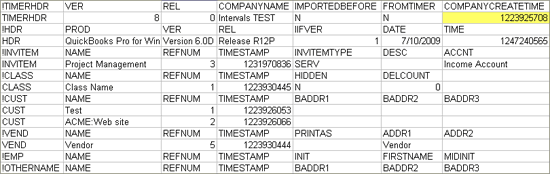
- Copy and paste the COMPANYCREATETIME into the "Company Create Time" value on the above left and click update
- QuickBooks time export only works with the QuickBooks Windows edition.
- The COMPANYCREATETIME and COMPANYNAME variables must match exactly between QuickBooks and Intervals.
- Once you have enabled QuickBooks and entered the COMPANYCREATETIME value in the site settings section, the QuickBooks time export icon will appear on the above-mentioned pages with exportable time data.
- QuickBooks Mac does not allow time activity imports.
Support for mapping work types to QuickBooks sub itemsAre you a QuickBooks power user? If so, we’ve updated the QuickBooks functionality for exporting time tracking data to IIF formatted files to support mapping work types to sub items. When creating your work types, use a colon to format the work type as an item/sub-item. For example, creating a work type labeled as “Web Design:HTML†will translate to QuickBooks with “Web Design†being the item and “HTML†being the sub-item. While this feature doesn’t add the ability to create sub work types, it does allow QuickBooks power users to take advantage of the items/sub-items feature within QuickBooks.Importing Intervals time data into QuickBooksAfter you have downloaded and saved an IIF file from Intervals, follow these instructions to import the file into QuickBooks.IntervalsQuickBooks Client Customer Project Job Person Employee Worktype Item Module Payroll Item Task & Description Note 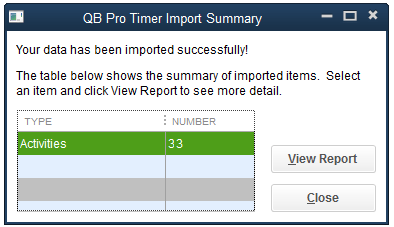
- We strongly recommend backing up your QuickBooks data before doing your first import.
- Open QuickBooks and go to File -> Utilities -> Import -> Timer Activities
- Find the saved IIF file on your computer and select it for import.
- If QuickBooks warns you that the import file was created with an older version, click OK (Intervals can’t guess which version of QuickBooks you are running).
- A small timer window will open showing the results of the import. Click “View Report” to verify your time data was imported correctly.
- Close the status window and you are done!
-
- 591dave
- Sep 3rd 2009
It would be great if we could opt to have Module sync with [QB] Class. -
- margaux
- Sep 5th 2009
Just wanted to report on my experience in hopes that it'll save others some troubleshooting time. I am using Quickbooks 2008 Premier Professional Services edition, and I found that when I imported projects/jobs, worktypes/items that did not already exist in Quickbooks, Quickbooks simply created a new one. This was pretty handy because I had added some new projects/jobs along the way, and it saved me some time not to have to add it in both places.
However, when I tried to import a client/customer that did not already exist in Quickbooks, it did error out and close Quickbooks as this original post says. Of course once I went into Quickbooks and created matching clients, the import worked perfectly. -
- jreeve
- Oct 8th 2009
Thanks for updating the forums with your experience. It really helps our customers to hear about others experiences. Meanwhile, if you have some ideas for how we can improve this feature please log into your Intervals account and click on the feature request link in the footer. This creates a formal request that is tagged with an ID and alerts our development team who will respond within 24 hours.
We'll consider the option of having Module sync with the QB Class. Sounds like an interesting idea worth researching more. -
- jreeve
- May 17th 2010
Update. We'll be changing the QuickBooks IIF export slightly so that module is exported as payroll item. For those companies that use payroll items in QB this may be a better way to align Intervals with QuickBooks. As for the QB Class, we've researched that and the conclusion is that it will not be implemented. The reason for this is that Class is not an allowable header for the TIMEACT item in IIF files. -
- jbetts
- May 17th 2010
Maybe I'm missing something, but this has been an issue with other web-based apps that integrate with QuickBooks. Is there some sort of mechanism in Intervals that recognizes that a particular time event has already been exported? This is one of the few advantages of using the QB timer, really the only reason for it. With their timer, when one exports time, it logs it as exported (the next time you export, it only exports unexported time events). You can then go into the log and change the exported status if you need to re-import, etc. Seems like this would just be a matter of adding a binary field in Intervals (and of course the necessary user interface additions!). Let me know if this already exists and if not, I'll add it as a feature request. Thanks! -
- jreeve
- May 18th 2010
Intervals does not have any sort of mechanism that identifies which time entries have already been exported to QuickBooks. Our advice is to include the QB export as part of the timesheet approval process and not export a timesheet until it has been approved. Once approved, the date range of each timesheet can no longer be updated by that person. This effectively makes it safe to export the timesheet without worrying about individual time entries being exported multiple times. -
- jbetts
- May 19th 2010
@#jreeve - Thanks for the quick response. The suggested workflow works great. Thanks! -
- brownrice
- Sep 14th 2011
We use Quickbooks online and QBTimer doesn't work with it -- only with the desktop versions. In fact, only with the Windows version, as far as I can tell. Is there any, any other way to export time and expenses to QB besides QBTimer? I really like the intervals interface, but I chose it primarily because I thought it integrated with Quickbooks. This seems like a serious functionality issue. -
- jreeve
- Sep 14th 2011 edited @ 09/14/2011 4:31 pm
It is true that Intervals will not work with Quickbooks online or the Mac version. We have tried to let our customers know on the QuickBooks settings page within Intervals, and above in this forum post:
QuickBooks 2006 or newer for Windows is required for Quickbooks integration.
QuickBooks Mac and Quickbooks Online are not supported because they do not allow time activity to be imported.
We have tried to make it as easy as possible to get data out of Intervals easily with CSV exports, the IIF export and custom exports via the API. Depending on your needs a CSV export or utilizing the API might be an option. Unfortunately, there are a lot of limitations on this front with Intuit and QuickBooks. We revisit the functionality periodically to see if there are additional IIF exports with the online version of QuickBooks but unfortunately these types of integrations tend to be quite complex. -
- p. kao
- Sep 19th 2011
In addition to time data, can data for expenses be exported from Intervals and moved into QuickBooks as well? -
- jreeve
- Sep 20th 2011
Unfortunately, expenses, payments and invoices can not be exported from Intervals at this time. -
- dkkohler
- Jun 12th 2012 edited @ 06/12/2012 10:40 am
Is there a way to prevent Modules from being exported to QuickBooks as Payroll Items?
Based on the suggested usage of Modules in Intervals, and the suggested usage of Payroll Items in QuickBooks, I'm actually having a hard time seeing how they relate. For our business, I intend to use Modules to designate different phases of projects (e.g. "Phase 1 - Design", "Phase 2 - Development", etc). However, in QuickBooks, our existing "Hourly Wage" Payroll Items are simply "Hourly Rate A". I don't see "Phase 1" as conforming to QuickBooks' intended usage for Payroll Items.
That being said, is there any way to simply ignore the Modules on export, or to have them mapped to a different field? I can certainly see their value when generating reports and invoices, just not as Payroll Items.
-Dan -
- jreeve
- Jun 12th 2012
Dan,
The best way to modify the IIF file is to open it in Excel. This program will recognize it and tabulate the file correctly. Then, just delete the column that contains the Modules. Save the file with the IIF extension and then import that into QuickBooks.
The main reason Modules maps to Payroll Items is that we have a number of customer's using Intervals in this way, thus giving them the option to utilize the Modules field in a way that fits their workflow. -
- dkkohler
- Jun 12th 2012
Great, thanks for the quick reply jreeve. It's nice to know that there is a workaround, although I'd much rather have this available as an option on the QuickBooks export page - any chance of having this added as a feature request? -
- jreeve
- Jun 12th 2012
Dan,
We're always open to suggestions :)
1 to 16 of 16
Comments are closed.
For more Intervals help documentation, please visit help.myintervals.com